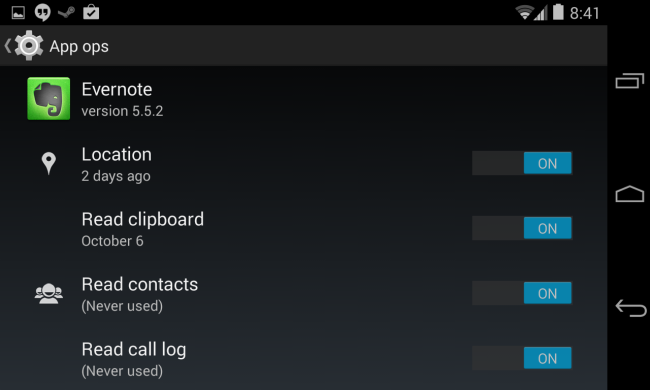
One of the best parts about rooting Android, in days gone by, was the ability to manage app permissions.
However, the latest versions of Android – Android 6.0 and up – let you customize app permissions fairly easily – whether or not you have a rooted Android.
How do you manage app permissions on Android without rooting? Today, we’re teaching you everything you need to know about controlling what your apps can do with your phone.
How to Manage App Permissions for New Apps
It’s really easy to customize app permissions when you’re installing a new app for the first time. Here’s the basic step by step guide:
Step 1) Open the Play Store app
Step 2) Go to an app’s detail page. Review permissions before installing by scrolling to Developer and tapping Permission details.
Step 3) Tap Install
Step 4) Some apps will be installed right away. In this situation, you’ll be asked to allow or deny certain permission requests whenever the app needs them. Other apps, however, will display all of the permission requests before installation. In this situation, you can customize the permissions you want to allow for the app.
How to Manage App Permissions for Installed Apps
Is an app already installed on your device? In that case, you can still customize app permissions without uninstalling and re-installing.
Step 1) Go to
Settings
Step 2) Go to
Google >
Instant Apps (on Nexus / Pixel) or go to App Manager / Application Manager
Step 3) Tap the app you want to control
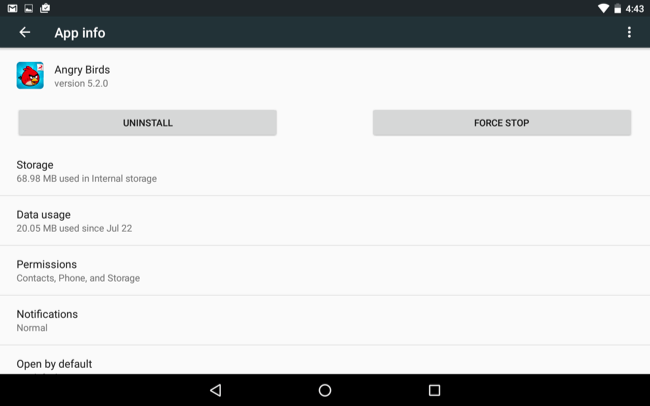 Step 4)
 Look under Permissions to see what permissions that app has
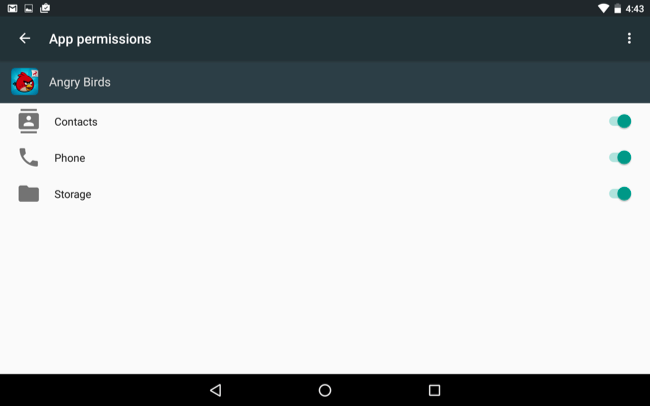
Types of Permission Requests
Google forces apps on the Play Store to request your permission to access different parts of your phone. Those parts of your phone include all of the following:
- Body Sensors
- Calendar
- Camera
- Contacts
- Location
- Microphone
- Phone
- SMS
- Storage
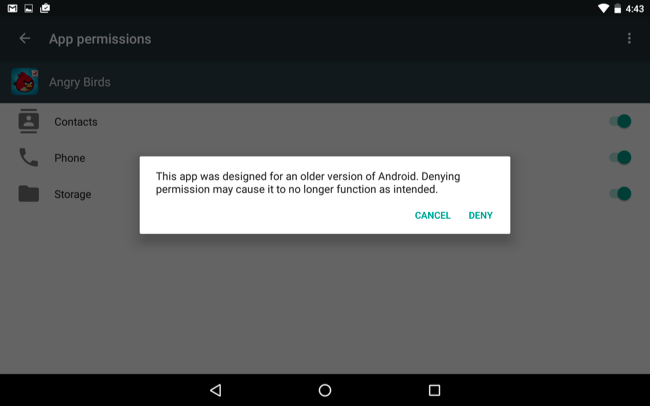
If an app isn’t working, it could be because you denied its permission requests, which can mess up other features of the app. Of course, there’s no reason why say, a calculator app should have access to your microphone or contacts – so you should always be careful with your permission settings.
Install an App that Controls App Permissions
If you’re using an older Android, or a customized build, then you may not be able to customize permissions using the steps listed above. In that case, you can find free apps on the Google Play Store that let you customize permissions.
Advanced Permission Manager, for example, is one popular and effective option.
By following the methods above, you can control what parts of your phone apps can access – and ensure your information stays protected.