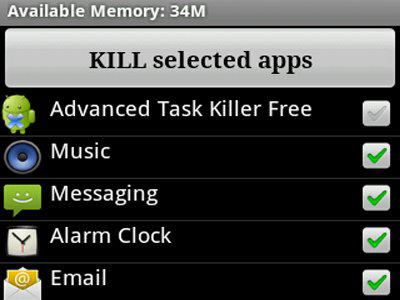
One of the biggest improvements of Android 4.1 Jelly Bean is the expanded active applications menu. This menu instantly shows users the RAM and CPU usage of all open applications along with the number of applications that are open but not actively running.
Today, we’re going to show you how to access this menu, remove unnecessary applications, and speed up your Android to its top level of performance.
Step 1) Press and hold your home button until this menu pops up:
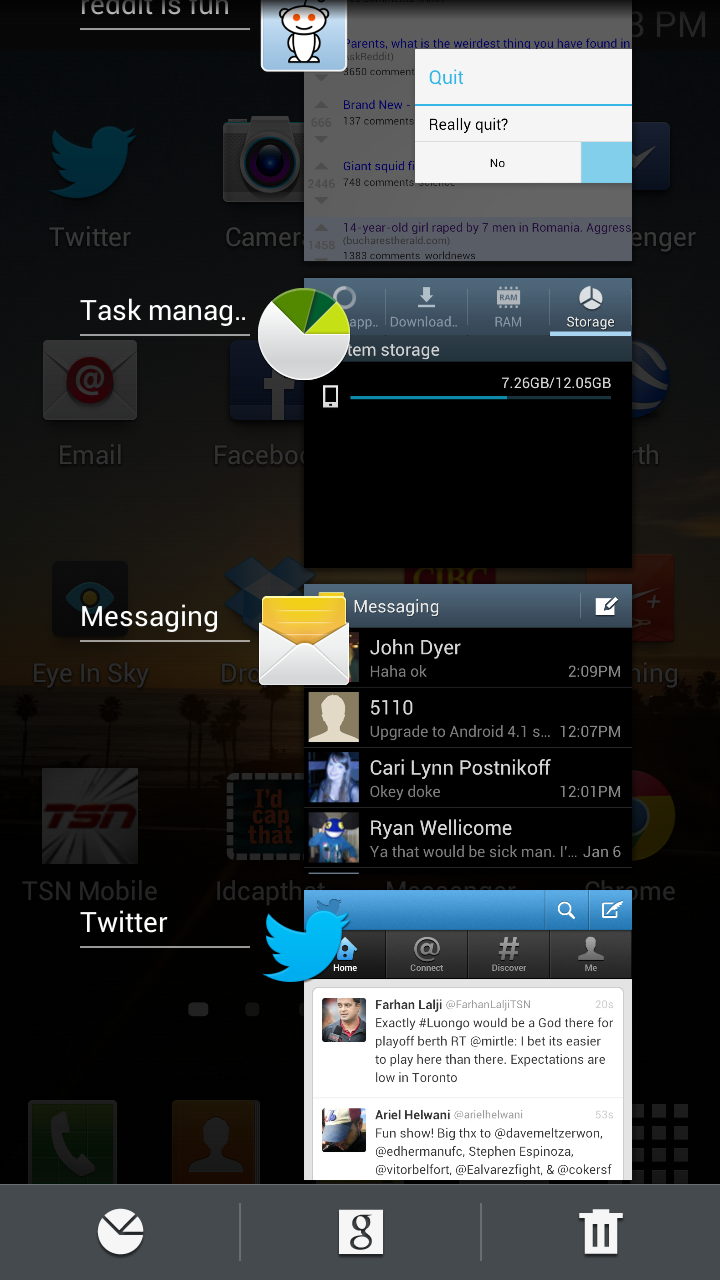
Step 2) This menu shows you a list of all recently opened apps. However, it’s important to note that not all of these apps are running. You might see two dozen apps on this screen, but in most cases, only 3 or 4 of them will currently be using processing power and memory. Click on the little pie chart icon in the bottom left corner to proceed to the next step.
Step 3) The pie chart button opens a menu that shows all downloaded apps, all active applications, along with RAM and remaining storage space
Step 4) If you’re ready to close down applications that you’re not using, navigate to the Activate applications menu and scroll through the list of applications that are currently running. You can see the amount of RAM and processing power that is currently being used by each application. If you want to boost performance as much as possible, end the apps that are using the most resources first. Or, end all of the active apps.
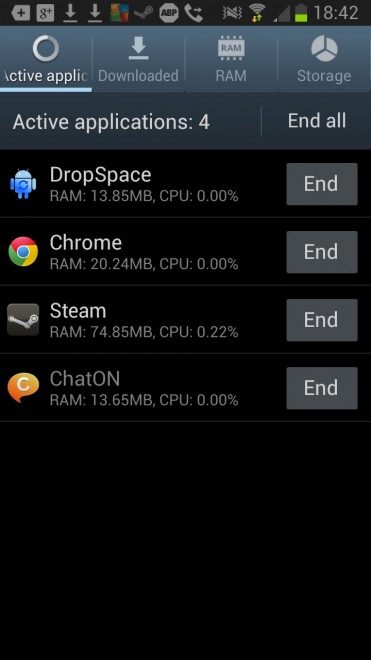
Step 5) You might not want to end all of the active apps on this screen. If you end the Chrome app, for example, then it will close down whatever window you currently have open. However, this menu is useful because:
-It shows you any apps that are actively running when you don’t want them to run
-You can see which annoying apps you need to uninstall or disable from the Application Manager menu
Not the full list of active processes
There’s a big difference between active applications and active processes. The steps listed above show you how to monitor and remove active applications. But your phone is likely running dozens of different processes along with the handful of apps you just saw.
To view a full list of active processes that are running, follow these steps:
Step 1) Press your Menu button to access Settings
Step 2) Scroll down to Applications Manager
Step 3) Tap the
Running tab along the top menu bar to view a list of all running processes
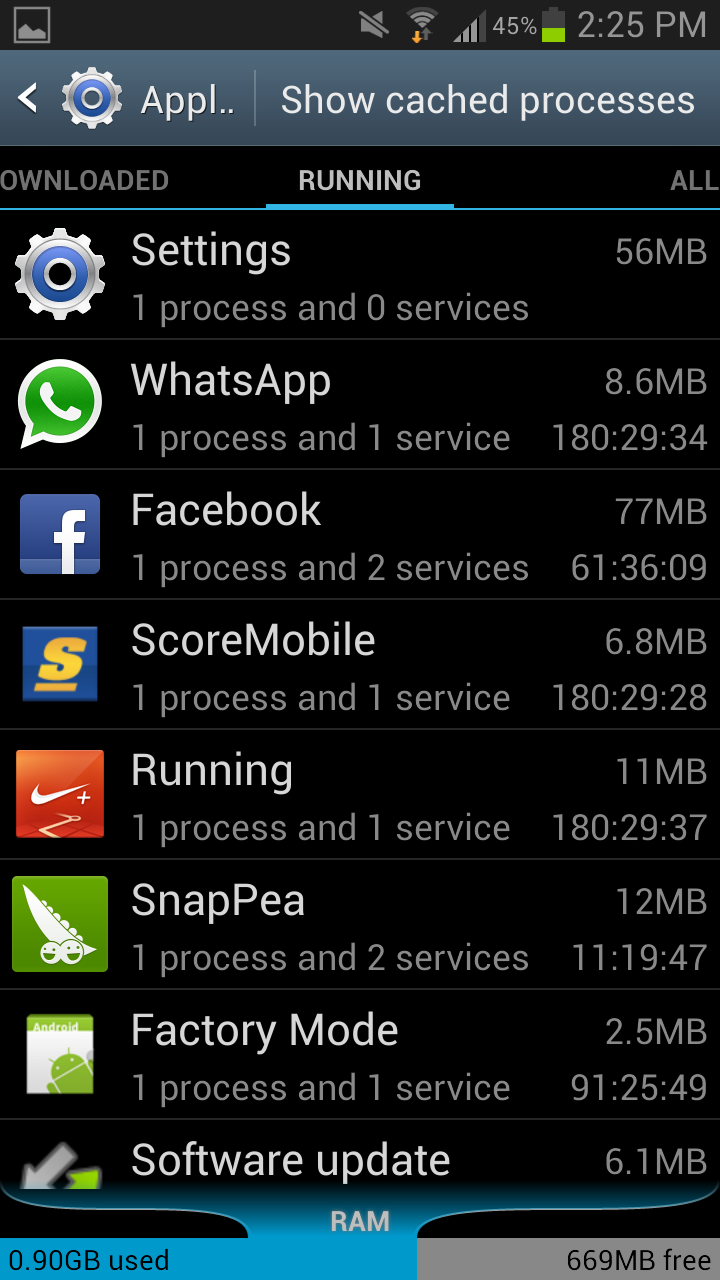
Step 4) This menu shows the amount of RAM currently being used by these processes (even when they’re not active) as well as the length of time for which these processes have been operating. For example, you’ll notice that a few of my apps have been running for 180 hours, which must mean that was the last time I restarted my Android.
Step 5) You shouldn’t worry too much about deleting active processes from this queue. Sure, they may be running in the background and using a miniscule amount of RAM, but they’re not sucking up as much processing power as the active applications we listed above. Focus your efforts on the active applications and, if necessary, delete any apps that are constantly hogging your Android’s resources without having the common courtesy of asking you first.
Will this actually save battery life?
There is a considerable amount of debate over whether or not terminating Android applications saves battery life. In past versions of Android, the ‘active applications’ menu we listed in the first part of this article showed the entire list of Android processes that were running. As a result, only a handful of those processes were actually consuming battery life, while the rest were simply hanging out in the background and using hardly any resources.
Now with Android 4.1 Jelly Bean, this problem has been fixed and users can now easily see which applications are currently and actively running. Ending those applications will save battery life and improve Android performance. But ending the active processes? Not so much.