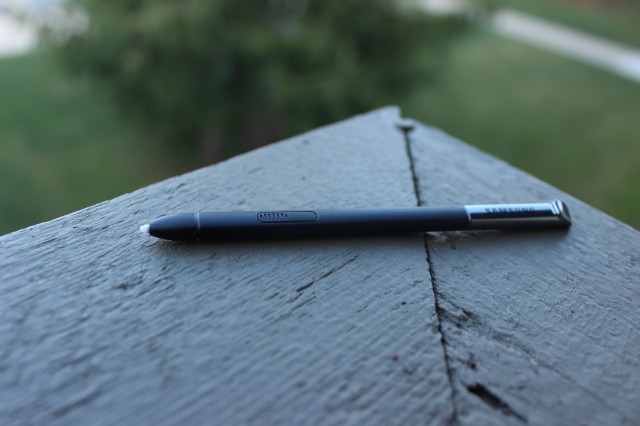
If you’re a Galaxy Note user, then you’ve probably familiarized yourself with the S-Pen by now. The S-Pen stylus is an integral part of the Note experience.
Although the S-Pen might look like a tiny, insignificant pen, there’s actually a fair bit of technology behind it. And if you want to get the most out of your Note or Note 2, then you should learn how to use that technology to its full potential. Today, we’re going to help you do just that.
Use S Memo Lite to copy quick notes
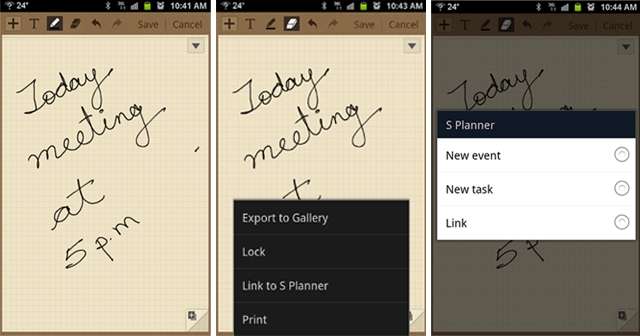
I don’t know about you, but when I need to take notes fast, I usually don’t have time to navigate through Android homescreens to find my little used S Memo app. But thanks to the Note’s S Memo Lite capabilities, quickly copying down notes has never been easier. S Memo Lite can be accessed by following the steps below:
-Remove S-Pen from its holster (duh)
-Hold the S-Pen’s button down and tap the Note’s screen twice
-S Memo Lite will pop up on screen, allowing you to scribble down whatever you need using the simple black stroke setting (you can also change to the pain brush, pen, pencil, and highlighter by tapping the pen at the top of the screen)
-Once your note is complete, hit save to copy the note into your phone
-Access your memo later using the full S Memo app
S-Pen activated screenshots
Let’s face it: only primitive Android users need to press the Home and lock buttons simultaneously to take a screenshot. On the Note, the S-Pen can easily take a screenshot for you:
-Find something you want to take a screenshot of
-Hold down the S-Pen button then press the S-Pen on the screen for a few seconds until the Android screen flashes
-The image editor will pop up on screen, and when you’re done drawing funny moustaches on your friends, you can click ‘Save’ to send that image to your gallery
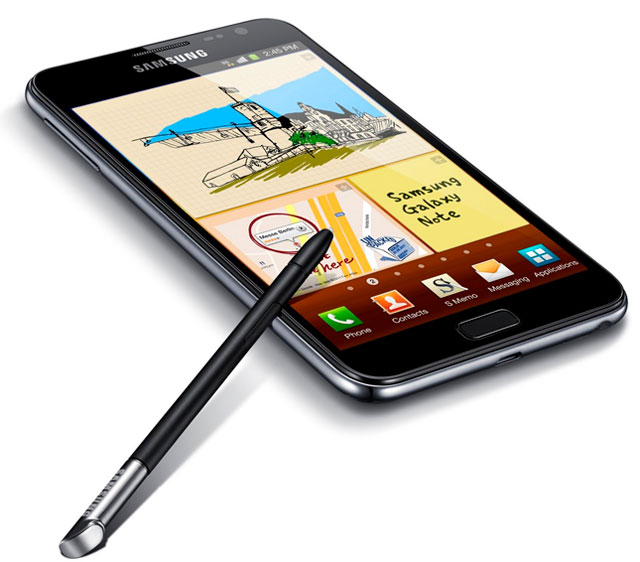
Access the menu or close a program with a swipe
As the title of this category suggests, opening menus and closing programs is just a swipe away:
-Press the S-Pen button and swipe upwards to pull up the Android menu
-Press the S-Pen button and swipe to the left to close the previous task that you were just working on
Resize widgets
With all the screen space on the Galaxy Note and Galaxy Note 2, you can afford to make your widgets as long as you want. To do that with the S-Pen, simply tap and hold any widget icon and then let it go. An outline and small grey arrow will appear around the edges of the icon, and you can drag the arrow anywhere you like in order to resize the widget.
Adjust S-Pen sensitivity
This tip comes
courtesy of Phandroid.com, and although it looks complicated, it’s not nearly as hard as it seems. To adjust the sensitivity of the S-Pen, simply remove the click button by applying a gentle force underneath the button. Use something thin, like a razor or small screwdriver. And be gentle, because the button is a thin piece of plastic.
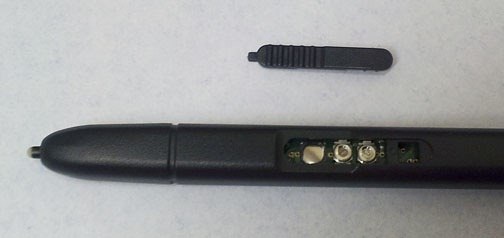
Once you’ve worked the button off, you want to look for something called the potentiometer. It’s the one closest to the tip of the stylus, the left-most button in the picture above. Once you find that button (it shouldn’t be too hard), simply turn it counterclockwise to increase sensitivity and clockwise to reduce sensitivity. To do this, you might want to use the same thin instrument from the first step.
Once you’ve found the sensitivity you like, replace the button and start using your S-Pen like never before.