How to Remove Advertisements on your Android Device
3 min read
Most people don’t like seeing advertisements when they’re browsing the internet or looking through their favorite apps. But unfortunately, advertisements are an inescapable part of the internet. In fact, advertisements are an inescapable part of the entire world.
Our world runs on advertisements. But if you want to really mess up the system, you can prevent yourself from seeing 99% of all Android advertisements ever again. How is such a thing possible? Keep reading to find out!
Step 1) Download Adblock Plus for free from the Google Play Store. This is the same popular adblocking app that is found on browsers like Chrome and Firefox, and it has proven its worth time and time again.
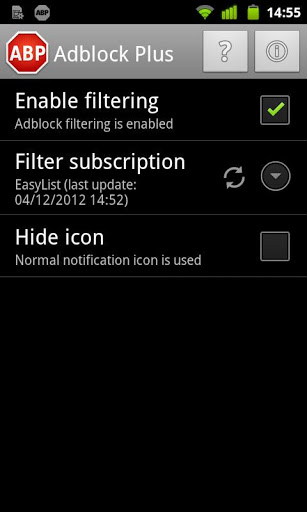
Step 2) After the app has completed its installation, open the Settings menu and make sure Enable filtering has been checked. This simply tells the app to filter out advertisements.
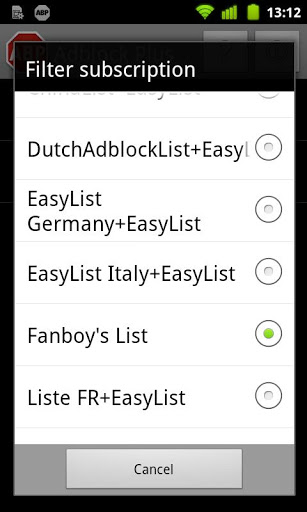
Step 3) You can subscribe to different filter lists through AdBlock Plus. For example, people who live in Italy and Germany would not want to subscribe to the default ‘EasyList’ because it won’t block most popular Italian or German websites. There are 11 different lists to choose from. If you live in an English-speaking country, EasyList should work just fine. But if you don’t, then choose one that reflects your location.
Step 4) Finally, while you’re in the Settings menu, you might as well check the ‘Hide notification icon’ button to prevent yourself from constantly seeing the AdBlock Plus icon in your notification bar
Step 5) Close out of the settings menu and open your browser or an app to make sure it has worked. You shouldn’t see any advertisements on pages where you used to see ads. Great!
If you still see some advertisements, then you might want to root your device to eliminate annoying advertisements at the source. Rooting your device will give ad blocking applications the power to block the servers where advertisements are commonly located. These servers will be unable to display any type of ads on your device, which is a perfect solution to your ad blocking troubles.
The problem with ad blocking apps is that they generally require rooting in order to block ads displayed over 3G or 4G connections. By default, ad blocking apps can only block ads over Wi-Fi connections. If you want to remove all ads from your device, take a few minutes to root your Android using One Click Root.
Download Adblock Plus today on your rooted or non-rooted device to never see advertisements again!

Step 3) You can subscribe to different filter lists through AdBlock Plus. For example, people who live in Italy and Germany would not want to subscribe to the default ‘EasyList’ because it won’t block most popular Italian or German websites. There are 11 different lists to choose from. If you live in an English-speaking country, EasyList should work just fine. But if you don’t, then choose one that reflects your location.
Step 4) Finally, while you’re in the Settings menu, you might as well check the ‘Hide notification icon’ button to prevent yourself from constantly seeing the AdBlock Plus icon in your notification bar
Step 5) Close out of the settings menu and open your browser or an app to make sure it has worked. You shouldn’t see any advertisements on pages where you used to see ads. Great!
If you still see some advertisements, then you might want to root your device to eliminate annoying advertisements at the source. Rooting your device will give ad blocking applications the power to block the servers where advertisements are commonly located. These servers will be unable to display any type of ads on your device, which is a perfect solution to your ad blocking troubles.
The problem with ad blocking apps is that they generally require rooting in order to block ads displayed over 3G or 4G connections. By default, ad blocking apps can only block ads over Wi-Fi connections. If you want to remove all ads from your device, take a few minutes to root your Android using One Click Root.
Download Adblock Plus today on your rooted or non-rooted device to never see advertisements again!

One Click Root Author
Content Writer
Experienced writer covering technology and mobile development.
You Might Also Like
How-To
Android 14 Root Methods: What Changed?
Explore the new root methods and security changes in Android 14.
How-To
Latest Android Security Updates Impact Root Access
Understanding how the latest security patches affect root methods.
How-To
Google Pixel 8 Pro Root Guide Released
Complete step-by-step guide to rooting the Google Pixel 8 Pro.
Comments
JD
John Doe
2 days ago
Great article! Very informative and well-written. Thanks for sharing.
JS
Jane Smith
5 days ago
I found the security section particularly helpful. Looking forward to more content like this!
Leave a Comment
Newsletter
Get the latest tech news delivered to your inbox weekly.
Popular Posts
-
1
Getting Started with Android Development
12.5K views
-
2
Best Practices for Mobile Security
8.2K views
-
3
Understanding Smartphone Hardware
6.8K views