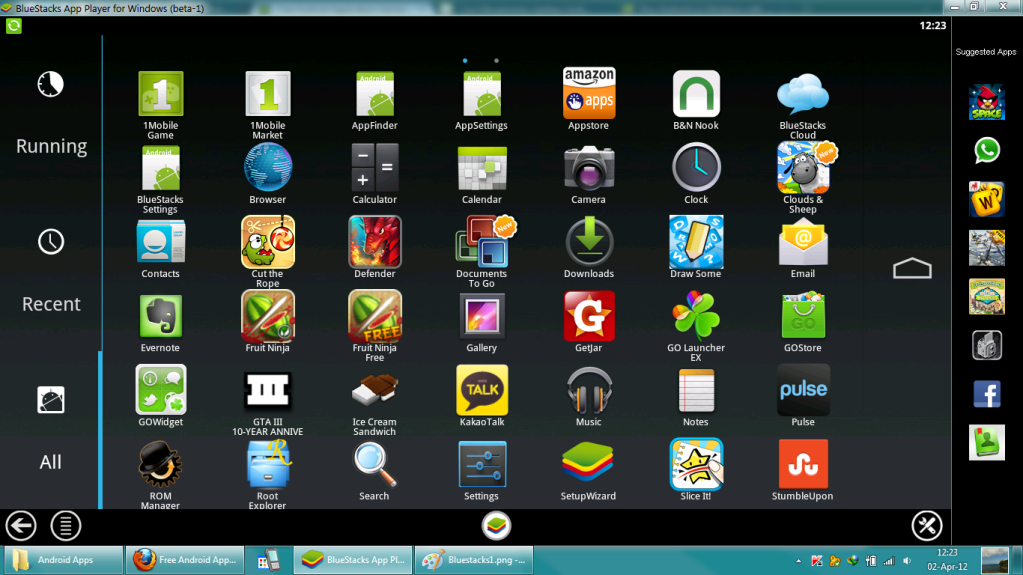
Android is an open-source operating system. That means you can do all sorts of cool things with it that you can’t do with other operating systems – like emulate it on your Windows PC.
Want to run Android on Windows? Here’s how.
Method 1) Android x86 Project (Free)
Basically, this tutorial will be about showing you how to use various Android emulators for PC. First, we have the Android x86 Project, which tends to be the best Android PC emulator out there today.
It’s free and can be run inside
VirtualBox (another free download). Simply download the .ISO file and you’ll be messing around with Android on your PC in no time at all. You can also access Google Play and run Android without performing a complete install.
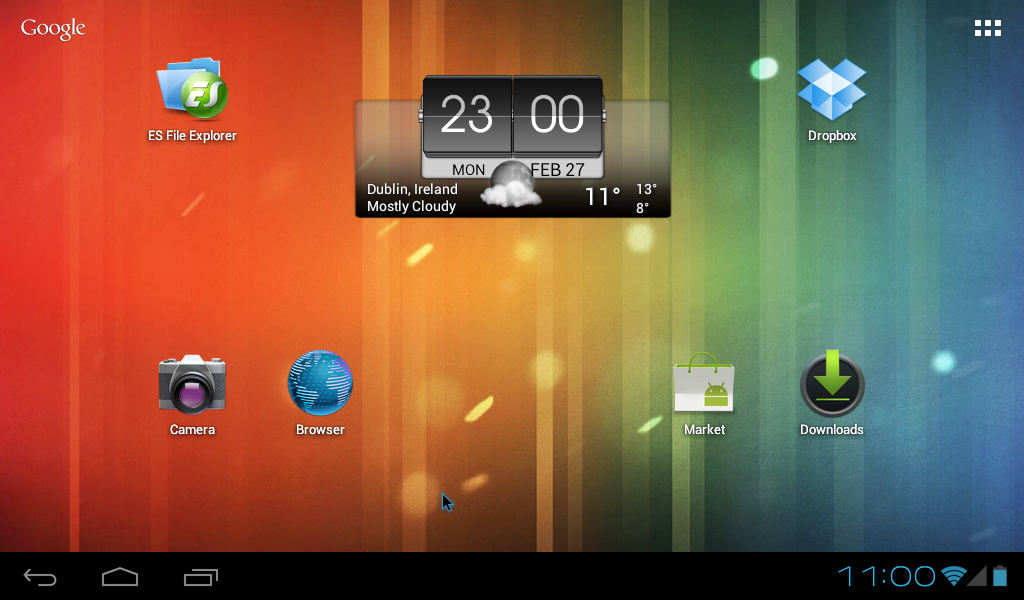
All the download links for the Android x86 Project can be found here:
http://www.android-x86.org/ You’ll also be able to find device-specific .ISO files, which is useful if you have unique x86 laptops and tablets (x86 essentially means you’re running a 32-bit operating system).
Method 2) Windroy
Android x86 forces you to download VirtualBox in order to run Android on PC. With Windroy, you only need to install an .exe file. Windroy can be found here:
http://www.socketeq.com/
Simply download the latest version of Windroy and run the .EXE file to install it. This will launch Android in full-screen mode. You can’t access the Google Play store, but you can install the Amazon App Store, which has plenty of available apps.
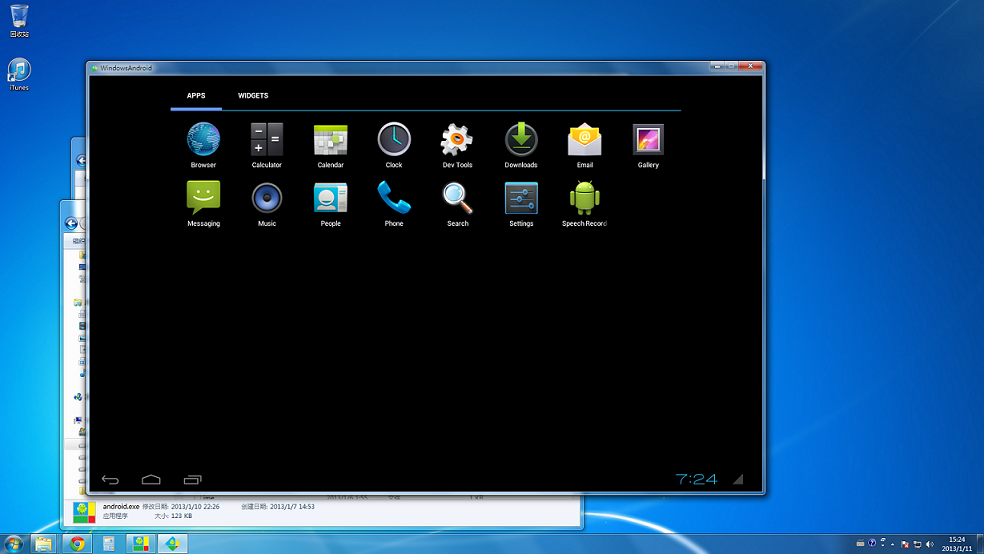
If you’re just looking for a quick and easy way to install Android on Windows, then Windroy is likely your best bet – even if you don’t have all the features of some of the other Android emulators listed here.
Method 3) BlueStacks for Mac and Windows
If you’re reading this article looking for a Mac-specific way to run Android on your computer, then BlueStacks is an excellent option. BlueStacks is currently free but might not be free for much longer – the developers are trying to get their software preinstalled with manufacturing OEMs.
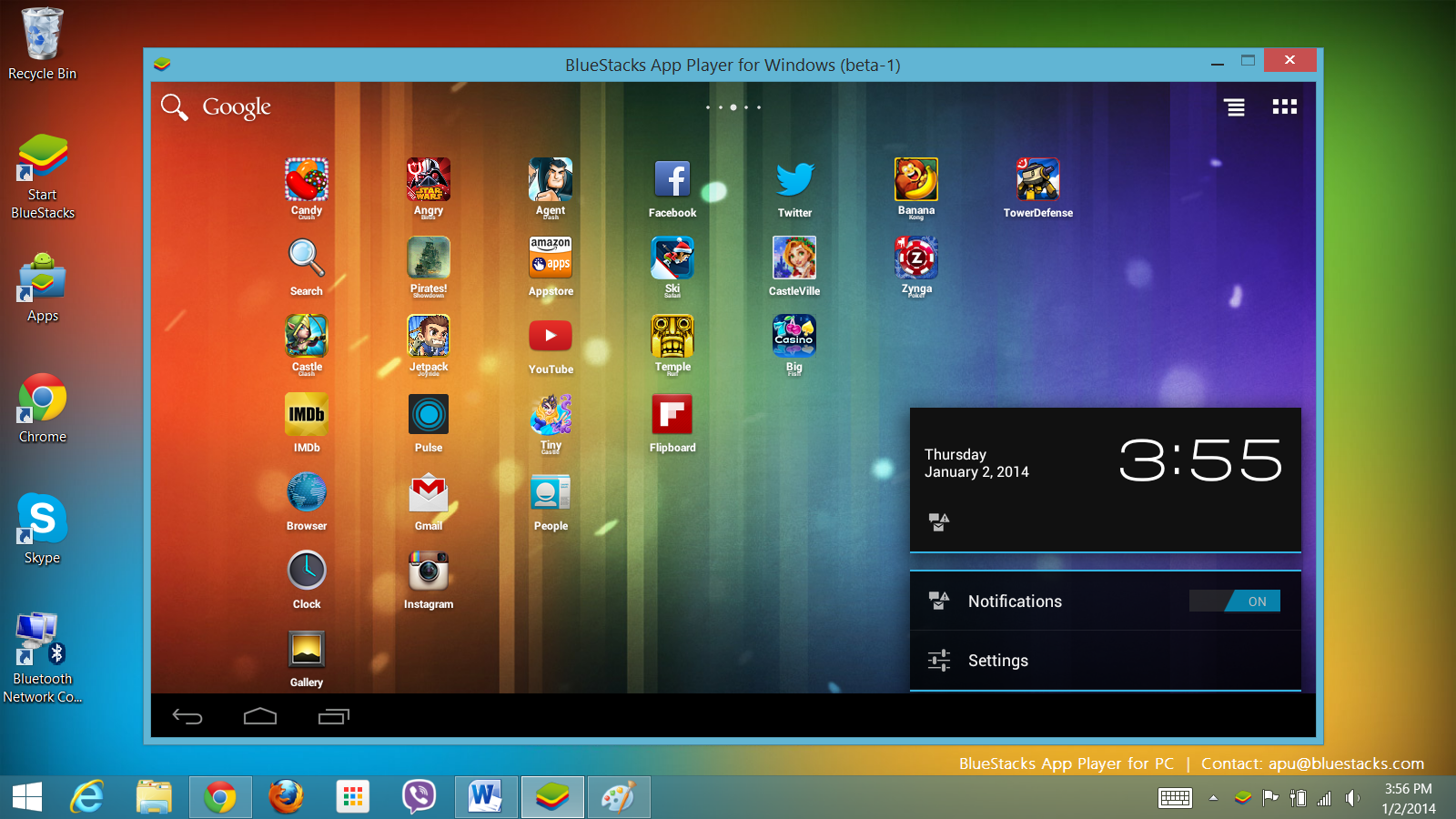
However , for now, BlueStacks is a free and easy way to run any Android apps on your Windows or OS X computer. All Android apps run like native apps, making it easy for you to enjoy your favorite games and utilities from the comfort of your office chair.
You can download BlueStacks for Windows XP, Vista, 7, 8, and Mac OS X here:
http://www.bluestacks.com/
Method 4) Android SDK
Google wants to encourage the development of Android apps, which is why they’ve made an easy PC software platform that lets you run Android. That PC software can be downloaded from the Android SDK webpage here:
http://developer.android.com/sdk/index.html
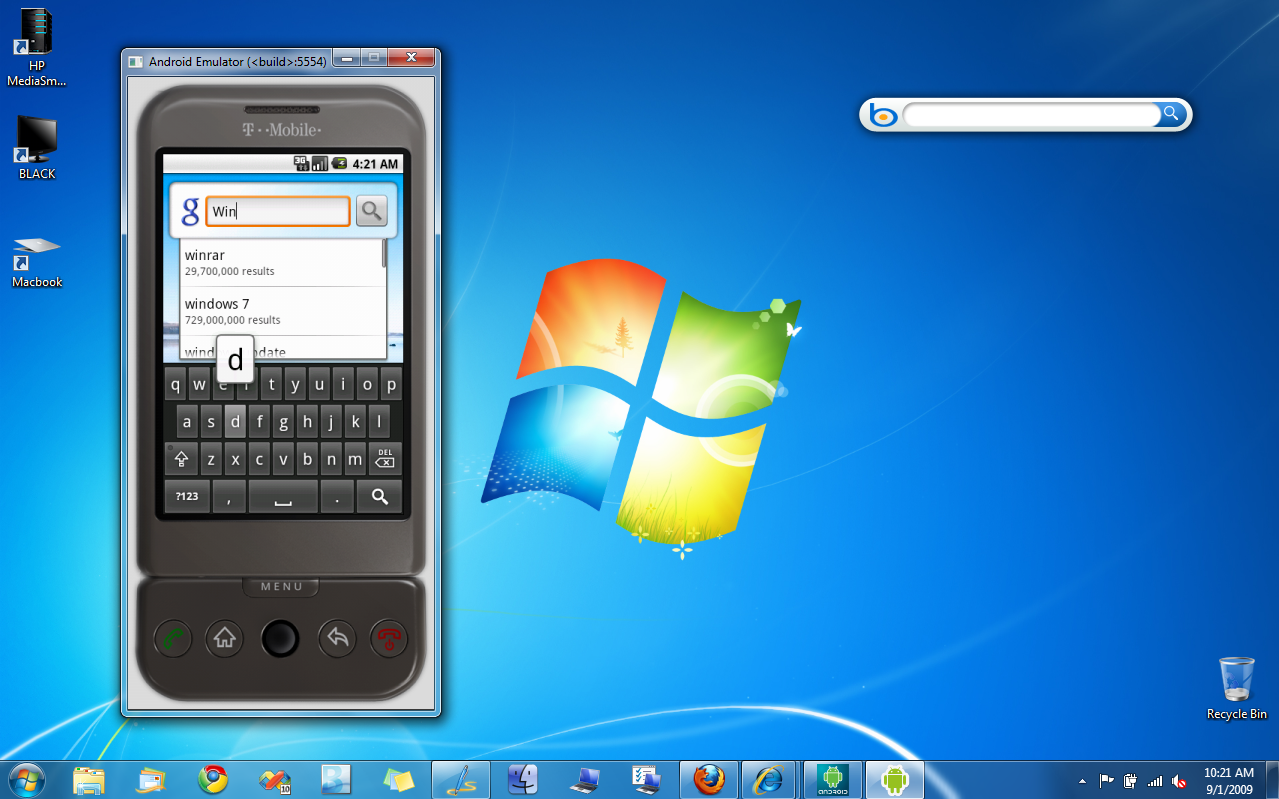
Just click the big blue
Download the SDK button to access Android on your PC. For whatever reason, the official Android software for PC is not nearly as functional as the other options listed here, so only use this if you need the official Android software or if you can’t get the other methods listed above to work.
Why should you run Android on PC?
Running Android on PC isn’t for everyone. It’s for a niche group of PC users. Some users like running Android on PC for app development, for example. Others are testing apps or performing other app development-related tasks.
Others simply want to use mobile-only apps on their PC. Don’t expect all your Android apps to run flawlessly on PC – especially those that depend on peripherals like a microphone or camera – but many apps should work okay.
At the very least, running Android on PC is a fun thing to do. Many of today’s best utilities – like Shazam – are only available on mobile devices, so having an Android emulator running on your PC can be a useful thing.