

 Thanks to these modifications, Google Now is compatible with any system language supported by Jelly Bean. The modified version of Google Now may not have the full features and language recognition capabilities as the English-language Google Now, but it does give non-English speaking Android users an excellent way to perform specialized searches and find local information.
The international version of Google Now works best for typing non-English requests. Once you’ve typed in your request, then Google Now goes to work just like it would in the English-language version. You can use it to find a pizzeria in Sweden quite easily, as you can see in the example shown here.
Thanks to these modifications, Google Now is compatible with any system language supported by Jelly Bean. The modified version of Google Now may not have the full features and language recognition capabilities as the English-language Google Now, but it does give non-English speaking Android users an excellent way to perform specialized searches and find local information.
The international version of Google Now works best for typing non-English requests. Once you’ve typed in your request, then Google Now goes to work just like it would in the English-language version. You can use it to find a pizzeria in Sweden quite easily, as you can see in the example shown here.

How to Use Google Now in Any Language
2 min read
Android is the world’s most popular mobile operating system. While Android enjoys a small market share advantage in the United States, it’s far more popular overseas, where market share reaches as high as 80% to 90% in some Asian and European countries.
For that reason, it comes as a surprise that Google Now - and a number of other Google apps - only support the English language. Fortunately, Android also encourages modding and app development, which is why one XDA Developers Forum member named Sletmo decided to modify Google Now to work with a number of new languages.
Thanks to these modifications, Google Now is compatible with any system language supported by Jelly Bean. The modified version of Google Now may not have the full features and language recognition capabilities as the English-language Google Now, but it does give non-English speaking Android users an excellent way to perform specialized searches and find local information.
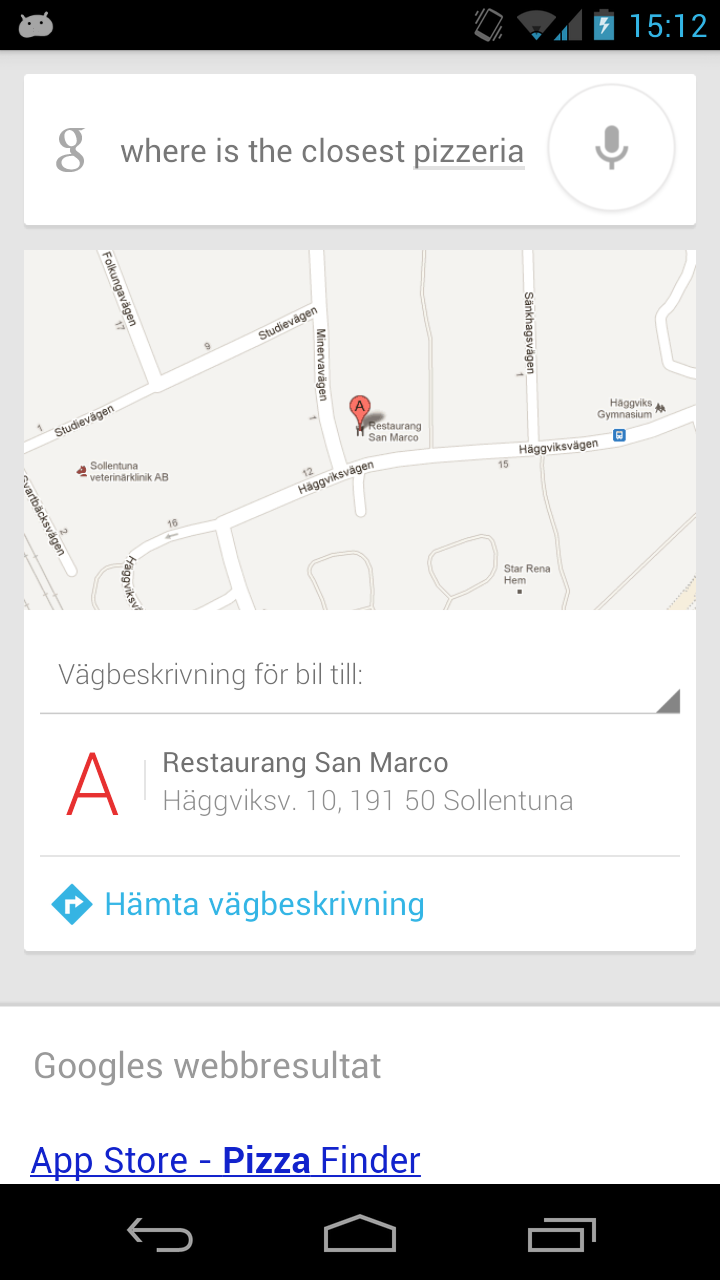
The international version of Google Now works best for typing non-English requests. Once you’ve typed in your request, then Google Now goes to work just like it would in the English-language version. You can use it to find a pizzeria in Sweden quite easily, as you can see in the example shown here.
Thanks to these modifications, Google Now is compatible with any system language supported by Jelly Bean. The modified version of Google Now may not have the full features and language recognition capabilities as the English-language Google Now, but it does give non-English speaking Android users an excellent way to perform specialized searches and find local information.
The international version of Google Now works best for typing non-English requests. Once you’ve typed in your request, then Google Now goes to work just like it would in the English-language version. You can use it to find a pizzeria in Sweden quite easily, as you can see in the example shown here.
Newsletter
Get the latest tech news delivered to your inbox weekly.