

How to Use Krome to Receive Android Notifications on your Computer
2 min read
If you spend long hours every day on your computer, then you’re probably used to looking away from your computer screen and picking up your phone to respond to notifications.
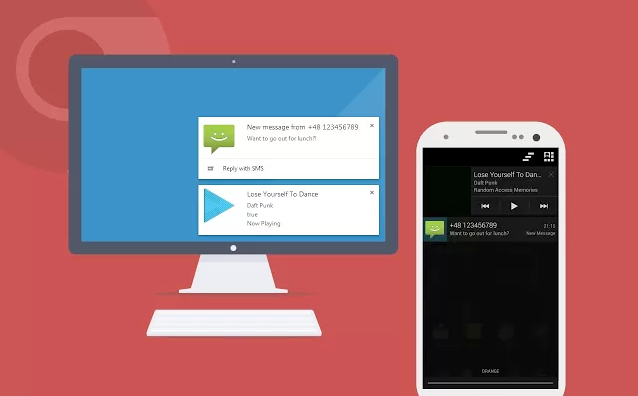
Fortunately, there’s now an easy way to view Android notifications directly on your computer monitor. To get started, all you have to do is install this free Chrome extension from the Chrome Web Store here.
Unfortunately for Mac OS X users, you’ll need the rich notifications version of Chrome, which is currently only available for Windows. Once you’ve installed that extension onto your Chrome browser, you will begin receiving real time notifications from your Android device directly onto your computer screen.
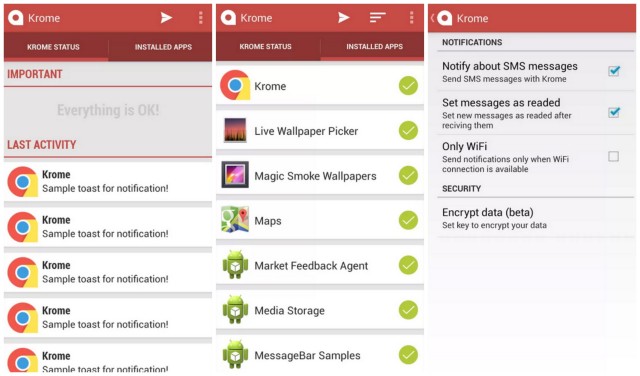
Krome works on a laptop or desktop Windows computer and can be customized to display only notifications from certain apps.
For example, if you only want your email notifications to pop up, then you can choose only that app from the in-app menu. You can do the same with text messages and even set messages as ‘read’ when you read them on your PC. Basically, it’s an extension of your Android onto your computer screen, and that’s a good thing for your productivity (hopefully).
Newsletter
Get the latest tech news delivered to your inbox weekly.