Screen Mirroring Now Available from Android to Chromecast
2 min read
If you’re a Chromecast user, then you’ll be happy with the latest Chromecast update.
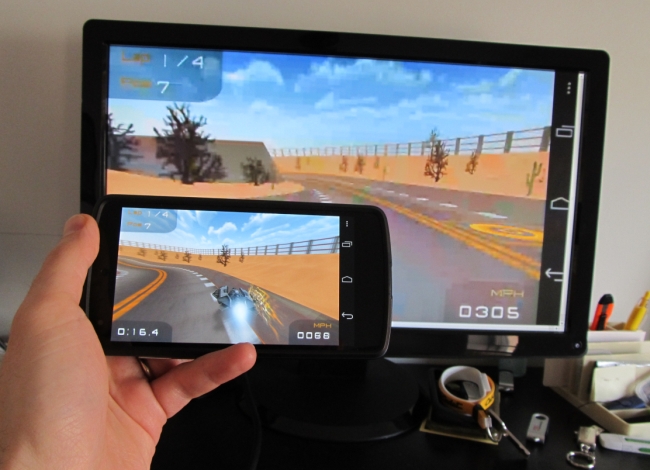
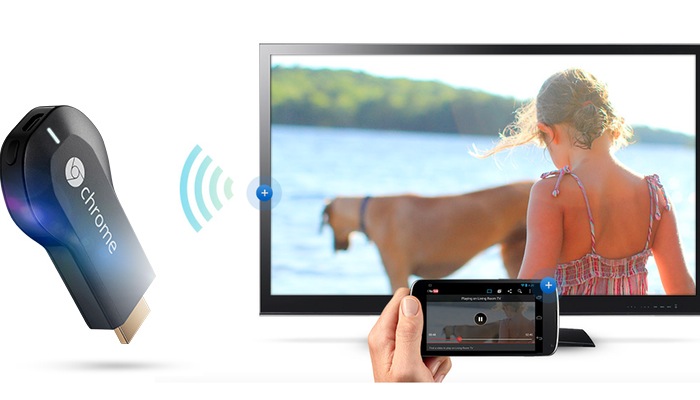
Google has officially made screen mirroring available on many Android devices. In other words, you can use your TV to display whatever is currently on your Android screen.
Screen mirroring can be useful for many different reasons. Some people will use it to display presentations at work, while others will use it to play games on their HDTV. You can also use it to show pictures from a recent vacation or play videos.
Screen mirroring is a killer feature for Chromecast and one that will make it very popular among those who are still on the fence.
Google has made screen mirroring available on a short list of devices, including:
-Nexus 4
-Nexus 5
-Nexus 7 (2013 edition)
-Nexus 10
-Samsung Galaxy S4 (including Google Play Edition)
-Samsung Galaxy S5
-Samsung Galaxy Note 3
-Samsung Galaxy Note 10
-HTC One M7 (including Google Play Edition)
-LG G3
-LG G2
-LG G Pro 2
The service is currently in beta testing, although Google promises to add support for more devices in the future.
Step 4) Launch your Chromecast app and slide the menu out from the left-hand side of the app, then tap the “Cast Screen” option. You’ll be prompted to choose the correct Chromecast device, and then your Android screen will appear on your TV.
If you’re a Nexus owner, then you actually don’t even need to download the latest version of the Chroemcast app, as wireless streaming functionality is hard-baked into your TV. To access that functionality, go to Settings > Display > Cast Screen. Easy!
The Chromecast dongle is available in 12 countries around the world, including the United States, Canada, and the UK.
-Nexus 4
-Nexus 5
-Nexus 7 (2013 edition)
-Nexus 10
-Samsung Galaxy S4 (including Google Play Edition)
-Samsung Galaxy S5
-Samsung Galaxy Note 3
-Samsung Galaxy Note 10
-HTC One M7 (including Google Play Edition)
-LG G3
-LG G2
-LG G Pro 2
The service is currently in beta testing, although Google promises to add support for more devices in the future.
How to use screen mirroring
Step 1) Make sure you’re using one of the Android devices listed above Step 2) Download the latest version of the Chromecast app from the Google Play Store Step 3) Connect your Chromecast and Android device to the same Wi-Fi network
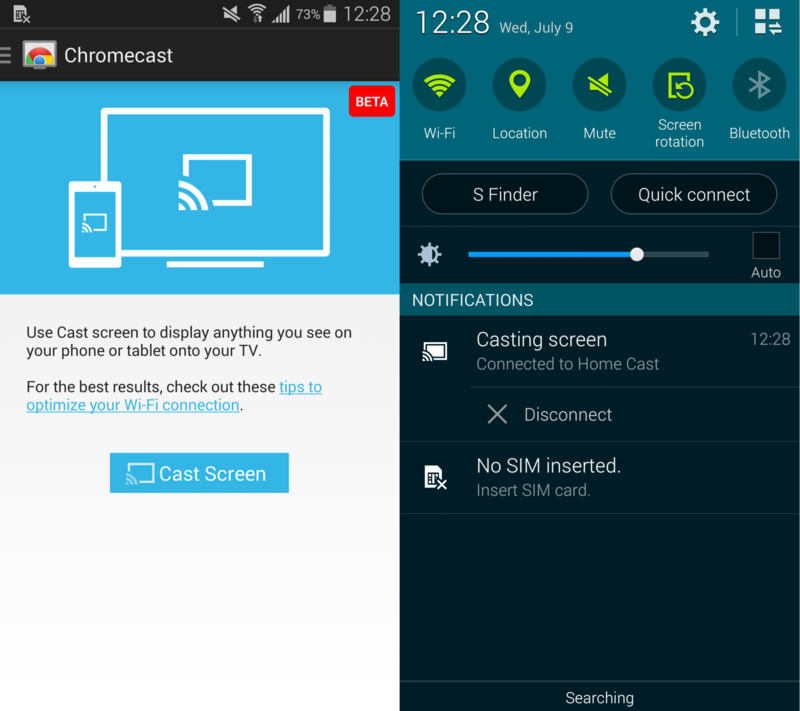
Step 4) Launch your Chromecast app and slide the menu out from the left-hand side of the app, then tap the “Cast Screen” option. You’ll be prompted to choose the correct Chromecast device, and then your Android screen will appear on your TV.
If you’re a Nexus owner, then you actually don’t even need to download the latest version of the Chroemcast app, as wireless streaming functionality is hard-baked into your TV. To access that functionality, go to Settings > Display > Cast Screen. Easy!
The Chromecast dongle is available in 12 countries around the world, including the United States, Canada, and the UK.

One Click Root Author
Content Writer
Experienced writer covering technology and mobile development.
You Might Also Like
How-To
Android 14 Root Methods: What Changed?
Explore the new root methods and security changes in Android 14.
How-To
Latest Android Security Updates Impact Root Access
Understanding how the latest security patches affect root methods.
How-To
Google Pixel 8 Pro Root Guide Released
Complete step-by-step guide to rooting the Google Pixel 8 Pro.
Comments
JD
John Doe
2 days ago
Great article! Very informative and well-written. Thanks for sharing.
JS
Jane Smith
5 days ago
I found the security section particularly helpful. Looking forward to more content like this!
Leave a Comment
Newsletter
Get the latest tech news delivered to your inbox weekly.
Popular Posts
-
1
Getting Started with Android Development
12.5K views
-
2
Best Practices for Mobile Security
8.2K views
-
3
Understanding Smartphone Hardware
6.8K views