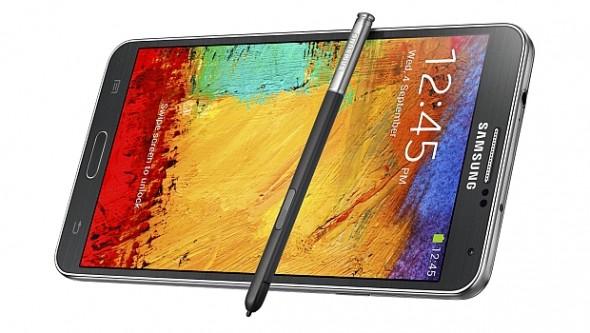
Never lose your S-Pen again
The S-Pen is an important part of your Galaxy Note 3 experience. That’s why the Note 3 has a built-in S-Pen detection feature. To access that feature, go to
Settings > Controls > S Pen and uncheck the
Turn off pen detection button and then check
S Pen keeper. Now, your Note 3 will alert you when you turn your screen off and haven’t docked the S-Pen. It’s a useful feature if you’re forgetful.
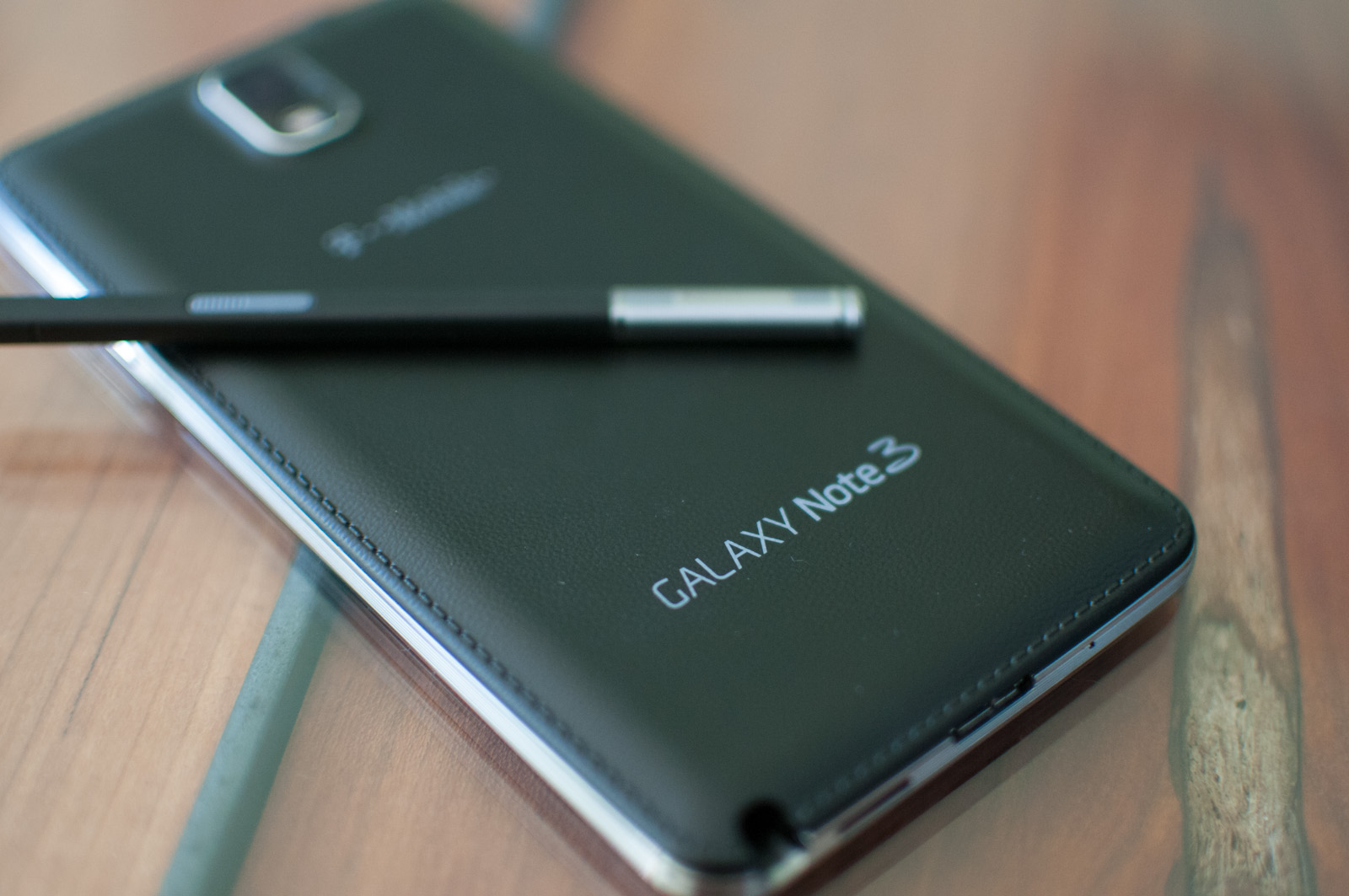
How to use your Galaxy Note 3 while wearing gloves
The Note 3 is one of the most versatile Android smartphones ever made. And versatility means that you don’t have to have dainty little fingers in order to use the device. In fact, you can use your Galaxy Note 3 while wearing gloves and other finger coverings. To do that, simply go to
Settings > Controls > Increase touch sensitivity. Turn that feature on and you shouldn’t have any problem controlling your Note 3 again. Great for on-the-job tasks!
Display battery life percentage in your top status bar
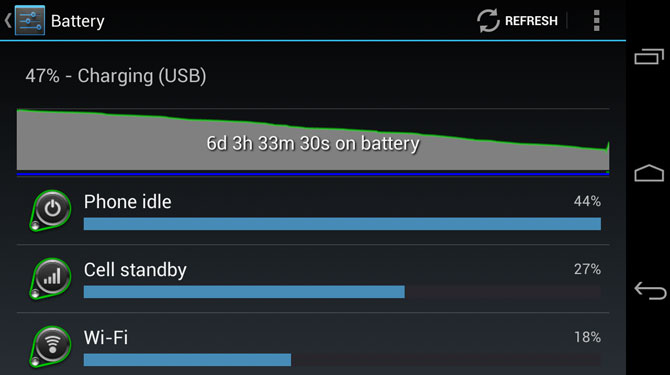
Battery life is way too important to leave to guesswork. That’s why I’m always amazed when I see an Android user who uses the default battery life ‘bar’ without percentage details. Are these people crazy?
To turn on battery life percentage on your Galaxy Note 3 (this also works for the Galaxy S4, S3, and Note 2), go to
Settings > Device > Display and scroll down until you see
Show battery percentage. Check that box and you’re good to go.
Search for settings instead of finding them manually
A lot of the tips listed on this page require you to scan through your settings menu until you find the right section for what you need. That’s not the most efficient way to go about things, especially if you’re used to the Windows 7-style interface where you can simply type a few words into the Start menu search bar and get results for everything you need.
To activate this option on the Note 3, simply go to your home screen and press the
Menu button and then choose
Settings. Look at the top of this page and tap
Search. Type in whatever words or phrases you need to find a particular setting. It’s surprisingly good at identifying what you’re trying to find.
Change which quick settings appear in your notifications slide-down bar
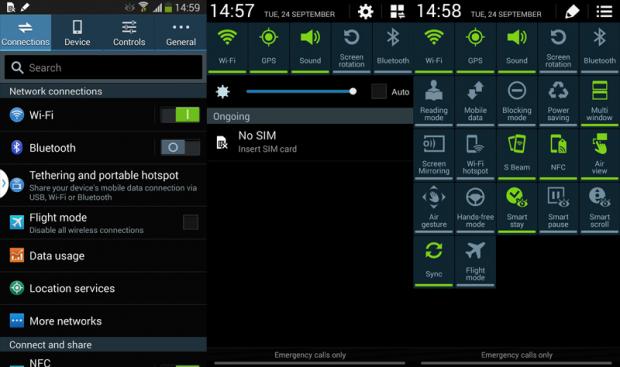
The notifications shade/notifications slide-down bar is an important part of your Note 3. But if the settings you need are hidden way down the list, then that’s not a very efficient use of your time, is it?
That’s why I recommend changing your quick settings buttons to best reflect your needs. To do that, pull down your notifications bar by swiping down from the top of your screen, then:
-Tap the square icons at the top right
-Tap the pencil icons at the top right
-Drag all of the available buttons to the Notification panel, where they will replace existing buttons
-You can reorder all of your quick settings icons by dragging and dropping them around your screen
Write notes without unlocking your phone
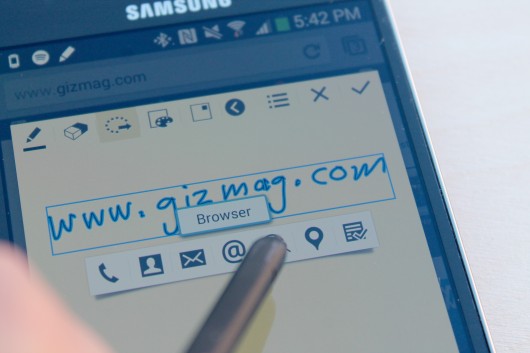
There comes a time in everybody’s life when you need to take a quick note on-the-go. Maybe it’s a phone number or maybe it’s the license plate of a guy who just hit you. Whatever the reason may be, you need to take a note as quickly as possible.
To do that, go to
Settings > Device > Lock Screen and look for the
Action Memo on lock screen option. Check the box beside that option.
Now, you can lock your phone, hold down your S-Pen button, and tap anywhere on the screen twice to activate your Action Memo.
Add quick launch icons to your Note 3 lock screen
From the same menu listed above (Settings > Device > Lock Screen), you can add quick launch icons to your lock screen. To do that, simply go to
Shortcuts > On and tap the icons for the apps you want to be able to quick launch. You can also add widgets to your lock screen from the same menu. Try adding a weather widget or a nice clock widget to your menu, for example.
Open multiple apps on the same screen
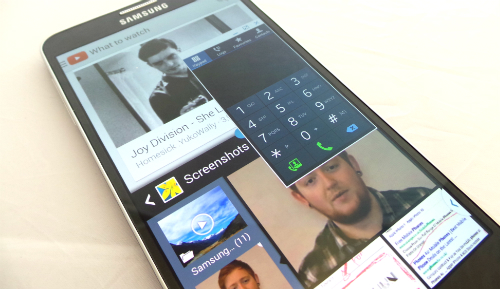
You can use two apps at the same time on the same screen simply by holding your back button. This opens up a menu on the left side of your screen. Drag and drop the app you want to use onto your screen and you’re good to go. You can adjust the size of each app window by tapping and holding the bottom part of the window.
Type with one hand
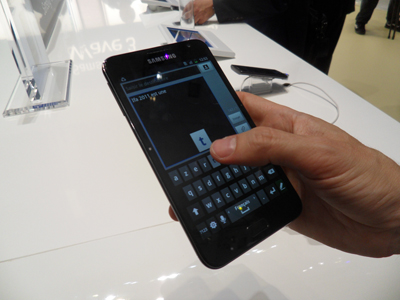
The Note 3 is one of the biggest Android smartphones ever made. Unless you’re seven feet tall and have dinner plate-sized hands, it’s really tough to type on the Note 3 with one hand.
Samsung anticipated your pain, which is why they added a one-handed keyboard. To access this one-handed keyboard, go to
Settings > Controls > One-handed operation and then check
Use for all screens. You can check all of the other boxes on that page as well if you want your Note 3 to automatically resize them.
Enjoy different screen tones and styles
Samsung’s AMOLED screen is vibrant and colorful. However, it’s a little too vibrant and colorful for some people. Fortunately, there’s an easy way to change your visual display settings. Go to
Settings > Device > Display > Screen Mode and then choose
Movie or
Professional photo, both of which will lower screen saturation and decrease vibrancy to a more normal level.
Have any more tips to add? Let us know in the comments section below!