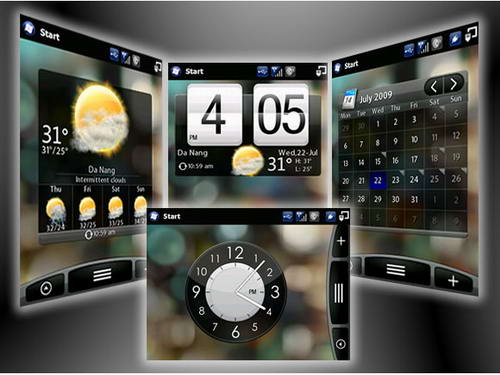
HTC Sense is the user interface found on HTC smartphones. Although HTC Sense resembles vanilla Android in many ways, it has some unique features that are easy to appreciate. To help you get the most out of your HTC smartphone, here are some of our favorite HTC Sense tips and tricks.
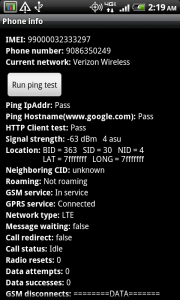 10) Dial *#*#4636#*#*
No, dialling this crazy code into your phone won’t connect you to the president or some other hidden phone line. Instead, it will direct HTC users to a screen that shows detailed information about their phone’s history, including its battery life, total all-time usage numbers, and CPU loads.
9) End sentences by tapping the spacebar twice
This one is self-explanatory and available on many Android builds. However, it’s a tip that many HTC Sense users aren’t aware of. When typing anything, simply tap the spacebar twice in order to create a period after the last word, then a space, and then capitalize the first letter of the next sentence.
8) Forwarding text messages
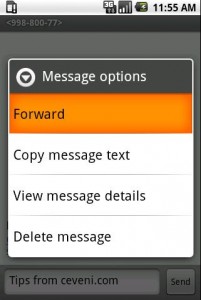
If you want to forward a text message to a friend, simply tap and hold your finger over that message and then choose
Forward from the menu that pops up.
7) Instantly make searches using the Menu button
On many HTC Sense screens, you can hold the
Menu button down to cause a keyboard to pop up. Typing into this keyboard will result in a search instantly being made. Keep in mind that this doesn’t work on all HTC Sense menus, but it’s a fast way to search through information in your phone on many menus.
6) Hold down the back button to view recently visited webpages
In the HTC Sense web browser, hold down the back button in order to view a list of webpages that you recently visited. Then, tap on any of these pages to instantly return to them.
5) Switch views in the app drawer
If your app drawer is filled with dozens of different apps, then the default HTC Sense view might not be ideal. Fortunately, you can switch the way apps are arranged by tapping the
Menu button and choosing
List or
Grid from the menu that pops up. The
List view is an ideal way to scan through a number of different apps at once.
4) Display the date in the top menu bar
By default, HTC Sense doesn’t tell you the date in the top menu bar. If you want to see the date at all times, simply tap the notification bar and the date will appear.
3) Save menu by dimming your web browser as it loads
Screen brightness plays a huge role in how long your battery lasts. If you want to make your battery last as long as possible, try enabling HTC Sense’s auto-dim feature. To do this, open the HTC internet browser, then head to Menu > Settings > Accessibility and choose the option
Dim screen during page loading. Now, when your browser loads a page, the screen will automatically dim. If you do a lot of web browsing, you should notice a significant boost to battery life after enabling this feature.
2) Rearrange home screens

Most HTC Sense users know about ‘Leap’, which allows you to instantly jump between home screens by pinching the screen your currently viewing. However, you can also rearrange your home screen order from this menu. To do this, simply tap and hold any of your home screens, then drag it around the screen and place it wherever you want.
1) Install more HTC widgets
HTC Sense has plenty of useful widgets pre-installed. However, there are still many other widgets that users may never experience. To view a list of all the official HTC widgets that are available, tap and hold an empty space anywhere on the home screen. This will bring up a
Personalize menu, after which you can tap
Widgets and then
Get more HTC widgets.