Top 4 Navigation Shortcuts for Android
3 min read
You probably spend more than a few minutes per day on your Android. But how much easier would your life be if the time it took to perform everyday tasks was cut in half? Today, we’re going to show you some of the best navigation shortcuts available to Android users today.
Most popular apps have widgets associated with them. Your weather app will have a helpful weather widget that can be placed on your desktop, for example. Instead of opening the app every time you need to check something (like a common iPhone user), you can simply look at that app’s desktop widget to get the information you need.
If you don’t already know how to do this, simply go to the apps grid (there should be a shortcut on the bottom of your desktop screen). Then, tap the Widgets tab along the top of the page and cycle through the available widgets. Tap and hold your finger over any of these widgets, then move your finger to the edges of the screen to place that widget on a desktop. If you’ve installed quite a few apps onto your phone, then there should be dozens of useful widgets that can be placed on your desktop.
Even if you bookmark your favorite website, visiting it on a daily basis can take a few seconds longer than it should. Instead of opening your web browser before navigating to the address/bookmark bar, try making a shortcut on your Android desktop.
To do this, simply:
-Go to the Chrome bookmarks bar (if you don’t have any bookmarks, create one by pressing the Menu and then clicking on the star icon).
-Tap and hold that icon and wait for a menu to pop up
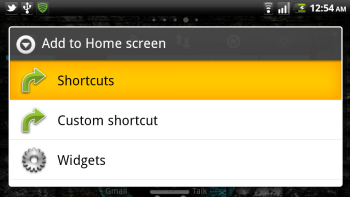
-Click Add to home screen to instantly add that shortcut to your home screen
1) Scroll through home screens faster
Your Android comes with several different home screens. Although swiping through these home screens is a piece of cake, you can reduce the time it takes to jump between home screens by tapping the home screen icons along the bottom of your screen. Each home screen is represented by a little dot, and holding your finger over that little dot for more than a second will allow you to quickly scroll through all of your home screens by running your finger back and forth along that bar. This is useful if you know an app is several home screens away.
4) Place widgets for your favorite apps on your home screen
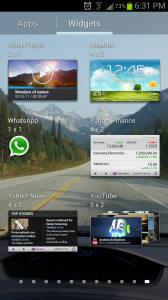
Most popular apps have widgets associated with them. Your weather app will have a helpful weather widget that can be placed on your desktop, for example. Instead of opening the app every time you need to check something (like a common iPhone user), you can simply look at that app’s desktop widget to get the information you need.
If you don’t already know how to do this, simply go to the apps grid (there should be a shortcut on the bottom of your desktop screen). Then, tap the Widgets tab along the top of the page and cycle through the available widgets. Tap and hold your finger over any of these widgets, then move your finger to the edges of the screen to place that widget on a desktop. If you’ve installed quite a few apps onto your phone, then there should be dozens of useful widgets that can be placed on your desktop.
3) Create desktop shortcuts to your favorite websites

Even if you bookmark your favorite website, visiting it on a daily basis can take a few seconds longer than it should. Instead of opening your web browser before navigating to the address/bookmark bar, try making a shortcut on your Android desktop.
To do this, simply:
-Go to the Chrome bookmarks bar (if you don’t have any bookmarks, create one by pressing the Menu and then clicking on the star icon).
-Tap and hold that icon and wait for a menu to pop up
-Click Add to home screen to instantly add that shortcut to your home screen
2) Jump between recently used Android apps with a single tap
Many Android users might already know this shortcut. But for those who don’t, it will change the way you use your Android. To access a list of recently used apps, simply hold down the home button and wait for a series of app tiles to appear. This is much easier than manually choosing each app from its desktop and it’s particularly useful for jumping between two apps that you need to access simultaneously.1) Scroll through home screens faster
Your Android comes with several different home screens. Although swiping through these home screens is a piece of cake, you can reduce the time it takes to jump between home screens by tapping the home screen icons along the bottom of your screen. Each home screen is represented by a little dot, and holding your finger over that little dot for more than a second will allow you to quickly scroll through all of your home screens by running your finger back and forth along that bar. This is useful if you know an app is several home screens away.

One Click Root Author
Content Writer
Experienced writer covering technology and mobile development.
You Might Also Like
How-To
Android 14 Root Methods: What Changed?
Explore the new root methods and security changes in Android 14.
How-To
Latest Android Security Updates Impact Root Access
Understanding how the latest security patches affect root methods.
How-To
Google Pixel 8 Pro Root Guide Released
Complete step-by-step guide to rooting the Google Pixel 8 Pro.
Comments
JD
John Doe
2 days ago
Great article! Very informative and well-written. Thanks for sharing.
JS
Jane Smith
5 days ago
I found the security section particularly helpful. Looking forward to more content like this!
Leave a Comment
Newsletter
Get the latest tech news delivered to your inbox weekly.
Popular Posts
-
1
Getting Started with Android Development
12.5K views
-
2
Best Practices for Mobile Security
8.2K views
-
3
Understanding Smartphone Hardware
6.8K views