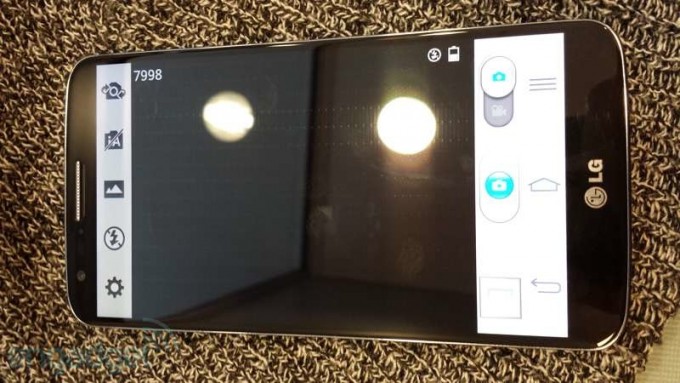
The LG G2 will be remembered as one of the best Android smartphones of 2013. Alongside the HTC One, Note 3, GS4, and Xperia Z, the LG G2 is one of the bestselling devices of the year.
Want to get more out of your LG G2? Here are some tips and tricks you can implement today for a better Android experience:
Use the ‘Show Desktop’ shortcut
One of the most useful buttons in Windows History is the Show Desktop button (Windows Key + D). It instantly minimizes all your programs and shows your clean, beautiful desktop.
The LG G2 has a similar function, although it’s not exactly a button. To see your desktop without all those apps cluttering it up, simply pinch out while on your homescreen.
Instant camera access
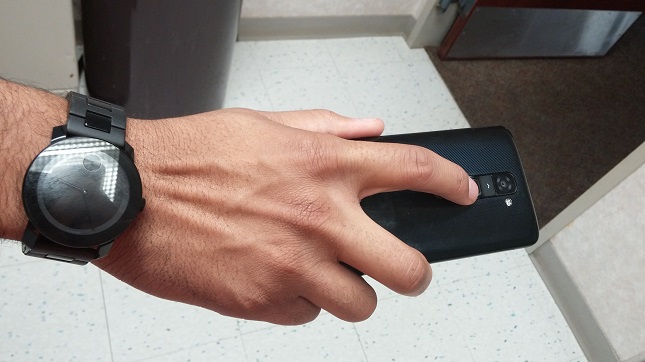
The LG G2 has a useful camera button that few users know about. While the screen is turned off, hold down the front volume down button for three seconds. Then, release the button and press it again to take a picture.
Instant note access
This tip is very similar to the above tip. Instead of holding the volume down button for quick camera, hold the volume up button for quick notes. This is great if you need to quickly write down a phone number, name, address, or license plate.
Change your text message themes in different customizations
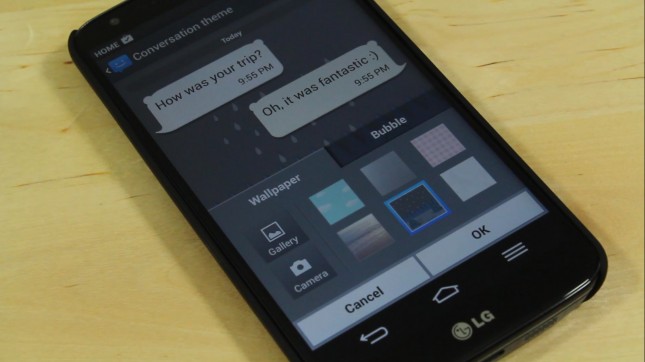
You can customize the theme of your text messages, including the text, background, and chat bubbles. To do that, simply go to your Messaging app and press
Menu > Settings > Conversation Theme. Then, choose a wallpaper to use or one of a bunch of different preset themes. You can use this same menu to customize SMS theme options per contact.
Transfer files to your LG G2 wirelessly
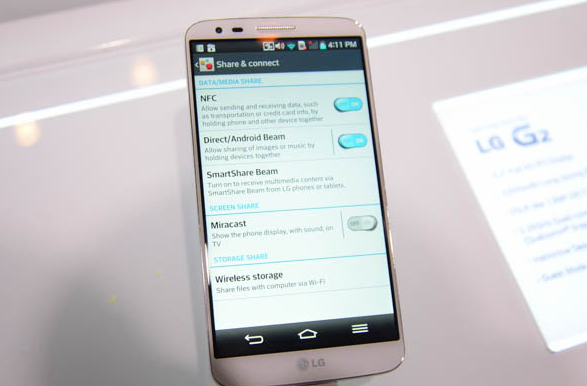
Transferring files to your LG G2 using a micro USB wire is so 2012. Add your LG G2 to your wireless network as a storage device and you’ll never have to dig your USB wire out from your drawer again.
To do that, make sure you’re connected to a wireless network. Then, simply open the drop down menu and enable the
Wireless Storage option. You can now open the Wireless Storage app to see complete IP address/password instructions.
You can change the password by going to the Wireless Storage app settings menu. If you don’t want to enter this information again, make sure you set your LG G2 to have a static IP address. That way, you’ll be able to easily use the Wireless Storage app any time your LG G2 and PC are connected to the same wireless network.
Take pictures that look better on your device
The LG G2 has a fantastic 13MP camera. Unfortunately, there’s one problem with this camera: the default 13MP size is a 4:3 aspect ratio. When you view your images on your full HD screen, you’re seeing it in 16:9 aspect ratio, which means that you’ll see annoying black bars on either side of the image.
That’s annoying. To fix this problem, try shooting your pictures in W10M resolution, which is ‘Wide 10 Megapixels’. You probably won’t notice the 3MP loss and you’ll be able to see your images better on your screen.
Easily share and delete images with a swipe
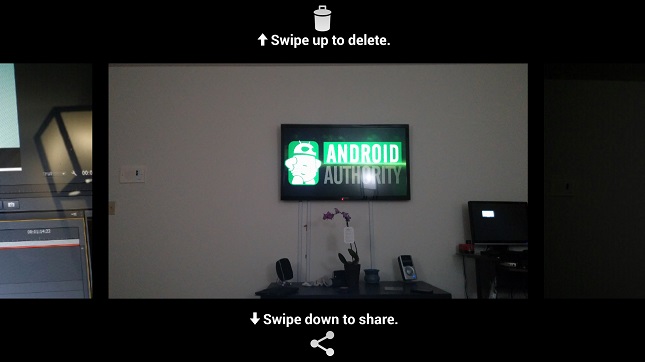
Open your gallery app and pinch on an image. You’ll see two simple options: swipe up to delete and swipe down to share. Guess what each of these functions does? It beats having to do either of these functions manually.
Got any more LG G2 tips to add? Let us know in the comments section below!