How to Check If Your Android is Rooted
2 min read
At the One Click Root blog, our goal is to make rooting any Android smartphone or tablet as easy as possible. But once you’ve rooted your Android, how do you make sure that the process is actually complete?
If you used something besides One Click Root to unlock your Android – like a manual script - then you may not receive a helpful confirmation message. Instead, your Android will simply boot up to the normal launch screen – just like it did before you rooted it.
Because of that confusion, many users are unsure whether or not they actually rooted their device successfully. Fortunately, there is a very easy to check if you have root access to your Android. Simply follow the steps listed below to check whether or not your device is rooted.
Step 1) Download a free app called Root checker from the Google Play Store
Step 2) Install the Root Checker app and launch it
Step 3) Press Agree when the Disclaimer comes up
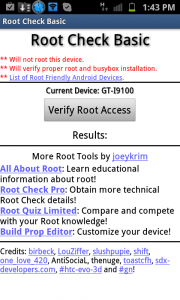
Step 4) Tap the Verify Root Access button
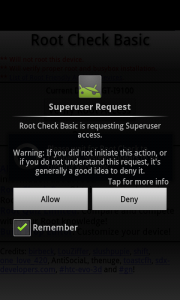
Step 5) At this point, the app will request Superuser access to your device. This allows it to view and modify root files. Root Checker is harmless and will not change your root Android files, so don’t worry about this step. Simply tap Allow to proceed.
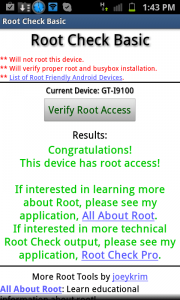
Step 6) If your phone has been successfully rooted, you’ll see the screen below
If your phone has not been successfully rooted, then you’ll see a different screen.
Remember: Root Checker will not root your phone or modify any core files in any way. It’s simply designed to check if you can access the root files on your device.
To quickly and easily root your Android using special software, try using a one-step software program like One Click Root.

Step 5) At this point, the app will request Superuser access to your device. This allows it to view and modify root files. Root Checker is harmless and will not change your root Android files, so don’t worry about this step. Simply tap Allow to proceed.
Step 6) If your phone has been successfully rooted, you’ll see the screen below
If your phone has not been successfully rooted, then you’ll see a different screen.
Remember: Root Checker will not root your phone or modify any core files in any way. It’s simply designed to check if you can access the root files on your device.
To quickly and easily root your Android using special software, try using a one-step software program like One Click Root.

One Click Root Author
Content Writer
Experienced writer covering technology and mobile development.
You Might Also Like
Root Android
Android 14 Root Methods: What Changed?
Explore the new root methods and security changes in Android 14.
Root Android
Latest Android Security Updates Impact Root Access
Understanding how the latest security patches affect root methods.
Root Android
Google Pixel 8 Pro Root Guide Released
Complete step-by-step guide to rooting the Google Pixel 8 Pro.
Comments
JD
John Doe
2 days ago
Great article! Very informative and well-written. Thanks for sharing.
JS
Jane Smith
5 days ago
I found the security section particularly helpful. Looking forward to more content like this!
Leave a Comment
Newsletter
Get the latest tech news delivered to your inbox weekly.
Popular Posts
-
1
Getting Started with Android Development
12.5K views
-
2
Best Practices for Mobile Security
8.2K views
-
3
Understanding Smartphone Hardware
6.8K views