

Before you begin
There are some important things to know about unrooting before you begin. First, restoring your phone to factory settings has a very small chance of ‘bricking’ it – which means it will refuse to power up. And second, each Android is different when it comes to restoring factory settings. Although the general process is the same, each device has some unique quirks. If the procedure listed below doesn’t work on your device, then you’ll want to research the internet for more device-specific instructions. Before attempting to restore factory settings, you should also backup the data on your phone. Since you’re already using a rooted phone, you can use an app like Titanium Backup to save your data to Dropbox or an SD card. That way, if something goes wrong, you can pick up right where you left off.How to restore to factory settings
On a default Android 4.0 installation, simply go to the Settings menu and choose the Back up and reset option. Then, tap Factory data reset to reset all settings and delete all data on the device. From this menu, you can also backup your accounts and other information. After pressing the Reset button, it can take anywhere from five to ten minutes to finish restoring your device. Older devices tend to take longer to reset because they hold more information. These step by step instructions should work with Android 4.0 installations as well as most custom ROMs: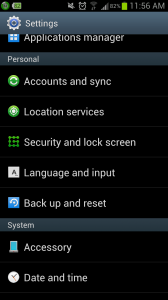 Step 1) Go to the Settings menu
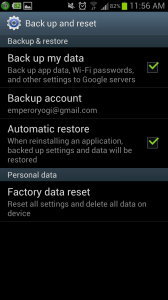 Step 2) Scroll down and tap Back up and reset (this is also called Privacy on certain Androids)
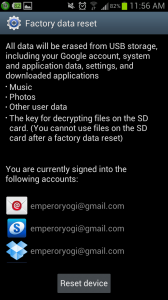 Step 3) Tap Factory data reset
Step 4) Click Reset device
Step 5) Wait for the process to complete and your phone should be restored to its original settings
Step 6) After the phone reboots, it may have an earlier version of Android. Once you connect it to a Wi-Fi or mobile network, the phone should ask you to upgrade to the latest version. This is generally a good idea, especially since older versions of Android have bugs and security problems.
Step 3) Tap Factory data reset
Step 4) Click Reset device
Step 5) Wait for the process to complete and your phone should be restored to its original settings
Step 6) After the phone reboots, it may have an earlier version of Android. Once you connect it to a Wi-Fi or mobile network, the phone should ask you to upgrade to the latest version. This is generally a good idea, especially since older versions of Android have bugs and security problems.
That’s it! Your Android is now restored to its factory state and ready for resale.