Okay, you’ve rooted your Android and now you want to know about all the cool stuff you can do with it, right? Well, look no further. Here’s our roundup of the coolest and most important apps for rooted Android smartphones and tablets.
ROM Manager
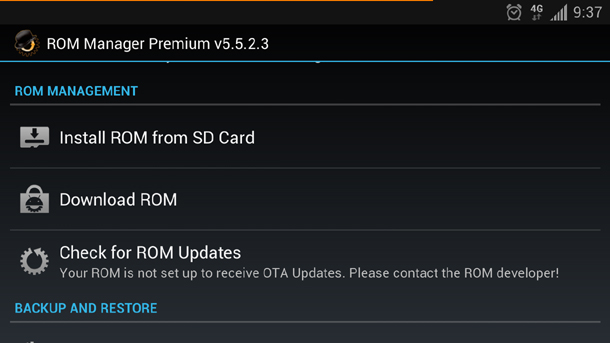
Once you’ve rooted your device, you’ll want to check out some of the cool ROMs that are available for your device. ROMs are basically new Android skins that change the way you use your device. After a bit of research, it’s easy to find a custom ROM with an interface that you like.
The easiest way to install custom ROMs is to download an app called ROM Manager, which lets users easily flash their Android device and install custom ROMs with just a few simple clicks. The app was designed by the ClockworkMod team, which is one of the most renowned rooted Android app developers on the planet (they also make the popular “ClockworkMod Recovery” app.
If you’re feeling lost about the overwhelming number of custom ROMs out there, then just choose the world’s most popular (and stable) custom ROM:
CyanogenMod.
Download ROM Manager for free from the Google Play Store
Titanium Backup
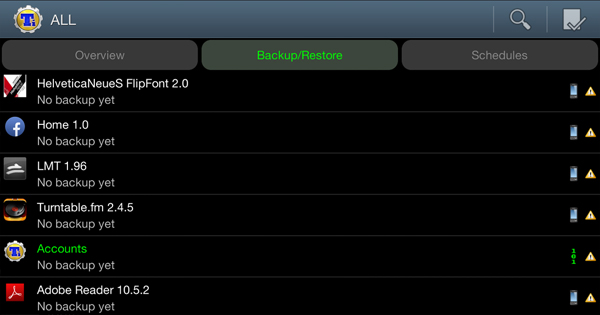
After downloading ROM Manager, many newly-rooted Android users then choose to install Titanium Backup, which is unlike any other Android backup service on the planet. Instead of just saving user settings and your personal files, Titanium Backup saves
everything on your Android including apps and all settings and data.
It’s the most powerful backup app on the planet, and backing up is important if you plan on playing around with your rooted Android a lot. With just a couple clicks, you can restore your device to the exact way it was before you screwed everything up.
I also like Titanium Backup because
you can use it to uninstall any app on your Android – including those annoying bloatware apps that came pre-installed on your Android device.
Download Titanium Backup
LMT Launcher
I don’t know about you, but I like Android’s interface. I can access everything fairly quickly and I never feel like moving to a particular app is too time-consuming.
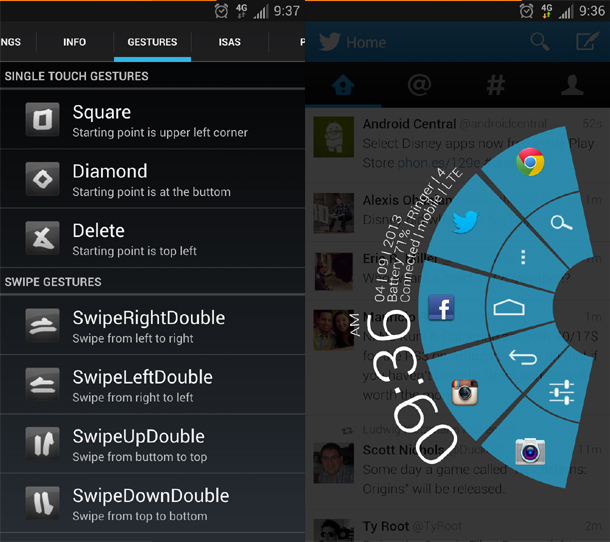
But after installing LMT Launcher, that all changes. Ordinary Android seems slow and painstaking in comparison to the sleek movements of the new LMT Launcher. With the LMT Launcher, you can override what all the gestures in your device do. You can change what swiping to the left and right does, for example, and you can even create new exciting gestures like a square or diamond.
LMT is all about using your Android’s touchscreen to its full potential. You can create invisible swipe areas all over your screen and
LMT Launcher is currently only available from the XDA Developers’ forum.
Click here to visit the download page and view a list of compatible devices.
Deliciously pure Android apps
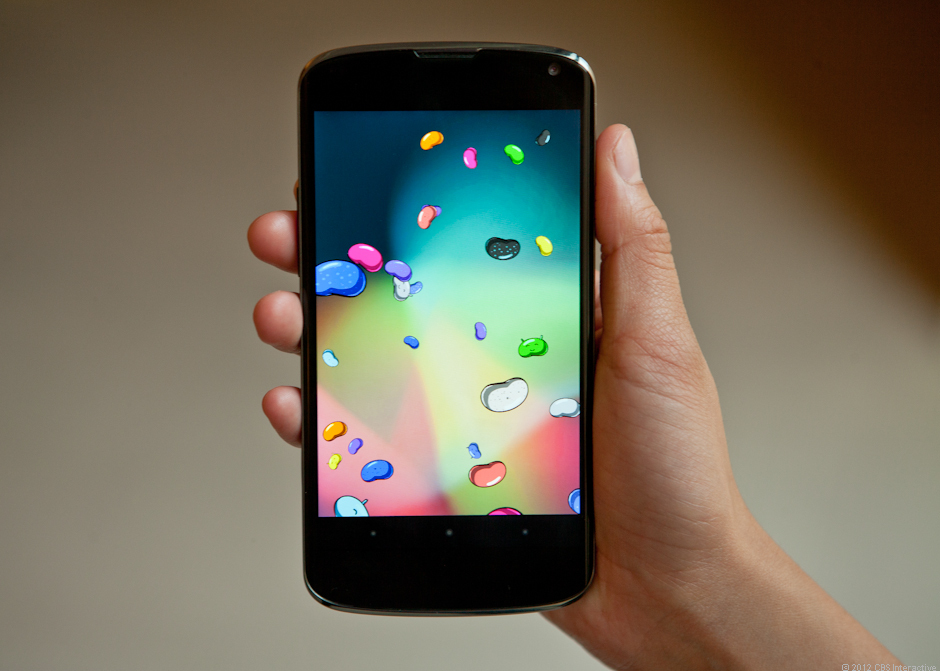
Android is an open-source operating system, and that means each hardware manufacturer has a different opinion of how Android should work. Samsung, for example, installs a number of its own apps to replace Android’s native apps, including apps for email, voice commands, messaging, etc.
Sometimes, these replacement apps do a decent job of replicating the pure Android experience. But most people wouldn’t mind tasting the pure Android experience. You can do that on non-rooted devices, but to truly experience pure Android, you’ll need to root your device and remove the pre-installed Samsung apps (or whatever manufacturer made your device).
Let’s face it: Google designs some killer apps. And if you like the minimalistic interface and smooth navigation of apps like Gmail, then you’ll love rooting your device and having access to these apps all the time.
Phandroid did a fantastic write-up of some of the best stock Android apps you can download today to replicate the pure Android experience.
Check out that writeup here and start downloading pure apps to your rooted device today.
Apps that let you run windows side-by-side
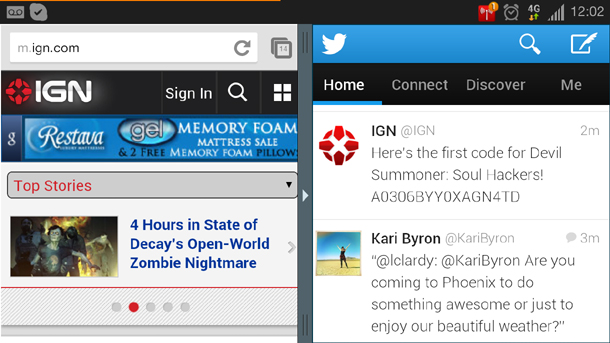
I love my Samsung Galaxy S3 and I adore its gigantic screen. But unfortunately, there’s no ability to run multiple apps side-by-side by default. After rooting your device, you can easily run app windows side by side for the ultimate Android experience. It’s useful if you want to post something to Facebook and Twitter, for example, or browse the internet while messaging friends.
Download the Samsung Multi Window Manager app to allow your Galaxy to run apps side by side
Download Android tablet apps onto your smartphone
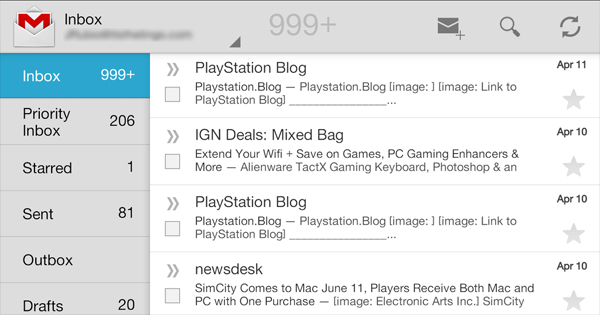
You’d be surprised how different Android tablet apps and Android smartphone apps can look. The Gmail app on tablets, for example, looks quite a bit different than the app for most Android smartphones.
After rooting your device, you can install tablet apps on your phone and take full advantage of your large screen. But beware: most tablet apps are built for tablets for a reason, and running them on your smartphone will result in some strange looking fonts and screen resolutions.
If you really want to install tablet apps on your phone and make the necessary adjustments to make them look perfect,
check out this guide at High on Android (that guide also includes the installation process).
SetCPU
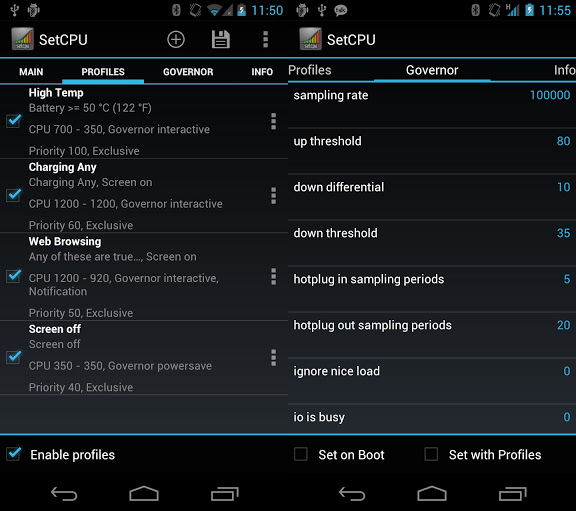
We’ve talked about SetCPU quite a bit at the One Click Root blog. It usually makes the list when we’re talking about the best ways to save Android battery life and it always makes the list when we talk about the best rooted Android apps.
What makes SetCPU so special? As the name suggests, SetCPU allows users to set their precise CPU speed and performance. Now, why would anyone want to do this? Well, it’s a great way to save battery life and it lets brave Android users overclock performance. So if you’ve noticed a bit of lag when playing resource-intensive games like Subway Surfers, then you can nudge up your CPU performance with SetCPU and prepare to dominate.
Download SetCPU for rooted Android here
Root Explorer
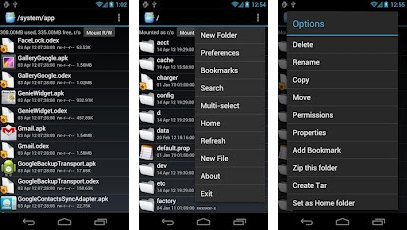
One of the few things I don’t like about Android is its built-in file manager. Sure, there’s a file manager – but it restricts users to certain parts of the device. That’s not very useful at all.
With the Root Explorer, Android users have access to files in every single part of their Android. You have free reign to modify, move, and delete files as you wish. But with great power comes great responsibility: be careful about what files you delete, and don’t be afraid to turn to the ClockworkMod Recovery app to restore everything you just messed up.
Download Root Explorer for rooted Android by clicking here

