Behold
Papyrus. The beyond paper note taking application from the new age. Majority of us users are aware of how the note taking application interface works. Something that started off as simple sticky notes today has a different meaning all together and with multiple interface overlays and designs each note taking Android app has something to bring to the fore and present a picture of elegance and grace that is optimized for the users and makes life much easier when used efficiently and to its fullest capacity.
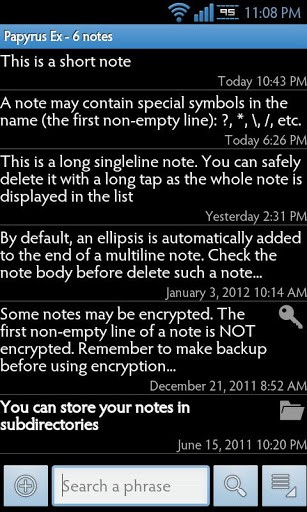
Papyrus too is one such Android app that hones a solid design and replicates the typical school-kid notebook look to give you a note taking app that will ensure you never forget a thing. The level of detailing that goes within this lovely Android app is intense and you can see it below.
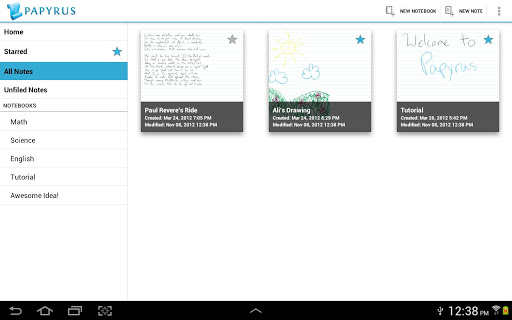
The home screen presents a list to the left and an option to open up a New Notebook and New Note at the top right of the screen.
The list to the left consists of:
- Home
- Starred
- All Notes
- Unified Notes
- Notebooks
- Math
- Science
- English
- Tutorial
- Awesome idea
The last set of 4-5 names under Notebooks above are just an example of how the lists looks and what all you can add within it.
Once you move into the screen and add in new notes a beautiful notebook-like interface appears on your Android device.
To the top on the bar you have:
- Tutorial
- Undo and Redo
- The Tool Picker
- Color Picker
- Page navigation
The tutorial teaches you to navigate through the Papyrus Android app that you can easily understand how to use this note-making tool once you have finished reading this.
The tool picker has an array of multiple options like the pen tool to write and jot down important points. Mind you these appear in a school-kid handwriting form when you write down points, something that make this Android app look cooler than it already is.
The selection tool enables you to select a particular area and that will be picked out for you to share and send through multiple avenues on the phone.
The simple eraser tool allows you to take out mistakes and the shape tools have you drawing multiple 2D shapes added to your note.
The text tool helps you add text in a text format other than the often exhausting handwriting methodology.
The option besides that being the color picker will have you pick multiple colors in the standard and advanced mode for the veteran artist.
For the S-pen users, this Android app is packed with even more brilliant multiple utility levels features. The below list of methods explain how you can press the button to the side of your Android device’s S-pen and slide it:
- Upwards – for automatically choosing the color picker
- Downwards- for accessing the tool picker
- Leftwards – for the Undo option
- And the right side for the Redo option
What’s even better is the fact that you can see all the notes in a small preview window on the home screen with all the colors and imagery used in it by you so that it is more convenient for you to get the perfect theme that you want to complement this nifty app. Your notes come with the date of creation and date last modified too so that you can track the changes you made
So what you waiting for? Get Papyrus on your Android device right away and streamline all your notes with an attractive old school touch.